Contour Rollermouse Red Wireless Review: Real User Experience After 3 Months
I've been using the Contour Rollermouse Red Wireless as my primary pointing device for the last three months, and I wanted to share a thorough account of what it's been like living with it day-to-day. I bought this because I was looking for a real alternative to my laptop touchpad and traditional mouse — mainly to reduce wrist reach and the constant pronation that left my forearm sore after long workdays. What I found was a device that changes how you move the cursor, with clear ergonomic upsides and a few frustrating trade-offs worth knowing about.
What the Rollermouse Red Wireless is (in my words)
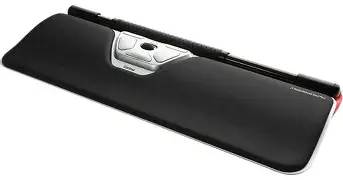
In short, the Rollermouse Red Wireless replaces the left/right hand mouse with a slim, centrally positioned unit that sits in front of your keyboard. You control the cursor by moving a central rollerbar left and right and pressing it forward/back for vertical motion; there are also several programmable buttons in close reach of your fingers and thumbs. The version I purchased is the wireless model, so it connects to my laptop without fiddling with wires and charges from a USB cable.
Why I decided to try it
I was tired of the small, repetitive movements required by a conventional mouse and the awkward reach to my desk edge. My goals were simple: reduce shoulder and forearm strain, keep my hands in a neutral position, and speed up long cursor-driven tasks like spreadsheet work and code editing. I've tried ergonomic mice in the past, but the Rollermouse's central placement appealed to me because it forces both hands to stay near the keyboard and minimizes lateral reaching.
Setup and first impressions
Out of the box, the Rollermouse felt dense and solid. I placed it directly in front of my keyboard the same day I received it and paired it with my laptop via Bluetooth; there was also a small USB receiver in the box which I kept for one-device pairing. The physical setup was straightforward — no weird drivers required to get basic movement. I did, however, install Contour's configuration software to remap a few buttons and tweak pointer acceleration. The software is functional and simple; it's not flashy, but it lets you assign common shortcuts and change basic sensitivity settings.
Physically, the palm rest is soft and shaped to encourage a neutral wrist angle. At first it felt unusual — because you're not gripping something — but the novelty faded after a couple of days. The rollerbar itself is firm with a matte surface that provides enough grip for precise nudges. The build quality has held up so far; there are no creaks or loose parts after regular daily use.
Daily use: ergonomics and comfort
After about a week, I stopped thinking "I'm using something different" and just used it. The biggest practical win was how little I had to move my forearm. I can keep my elbows tucked in and type, then move the cursor with tiny finger/hand motions. For long stretches of writing, code review, or spreadsheet cleanup, I genuinely noticed less fatigue in my shoulder and forearm — the Rollermouse delivered on the ergonomic promise.
That said, there's a learning curve. For the first two weeks I made a lot of overshoots and small misclicks, especially when dragging. Precision gets better with practice, but muscle memory from years of mouse use doesn't transfer immediately. I found myself having to relearn gestures like click-and-drag for corner-to-corner selections and adjusting my speed for diagonal moves.
Discover deals on Laptops & Computers — updated daily.
See Deals →Buttons and controls
I appreciate the layout of buttons — several are placed under the rollerbar and to either side so they can be reached without stretching. I mapped frequently used shortcuts like copy/paste and undo to these buttons, which saves time. Two things I liked: the primary click buttons are responsive and feel deliberate, and the middle-click is easy to reach for tab management in browsers.
One annoyance: some of the auxiliary buttons are small and sit close together, so I occasionally pressed the wrong one when I was in a hurry. After three months I still sometimes mis-hit a button, especially when my hands are slightly sweaty or when I'm wearing thin gloves (I do most of my editing in the late evening with a cup of coffee nearby).
Performance: pointer control and precision
For daily productivity tasks — text editing, spreadsheets, browsing, and basic photo cropping — pointer control has been excellent. The rollerbar gives very smooth, linear control when making slow adjustments, and I found it particularly handy for fine-tuning cursor position when moving between tiny UI elements. For tasks that require absolute pixel-perfect control over very small areas (heavy digital painting or competitive FPS gaming), it wasn't ideal for me. I tested a small photo retouch workflow and found I had to slow down for detail work; a pen tablet still feels more natural for that kind of precision.
Drag-and-drop took me the longest to master. My first month included several accidental drops when I moved the cursor too quickly while holding an object. By month two, my muscle memory adapted and accuracy improved. If you're a heavy drag-and-drop user, plan for a few weeks of adjustment.
Battery life and connectivity
Battery life has been solid in my experience. With a typical 8–10 hour workday (mostly office apps and browsers), the Rollermouse lasted about two weeks between charges for me. I charged it with the included USB-C cable; a short 30-minute top-up would routinely cover a full day if I forgot to charge overnight.
Connectivity has been reliable. I used Bluetooth most of the time and only switched to the USB receiver when I needed a second device paired simultaneously. I had one instance of a brief lag when my laptop was on battery saver mode and Bluetooth performance dipped, but switching to the receiver fixed it instantly. I can't recall any dropouts caused by the Rollermouse itself in normal home/office conditions.
Software and customization
The Contour software lets you remap buttons, change pointer sensitivity, and update firmware. In my experience the software does what you need without being intrusive. I set up two profiles — one for my work laptop and one for my home desktop — which made switching contexts easy. One caveat: the software is a bit bare-bones and lacks advanced macros or layered profiles that power users might expect from some high-end mice. For me, the simplicity is a plus rather than a limitation.
Find top-rated Laptops & Computers products at great prices.
Browse Now →Durability after three months
After three months of daily use the Rollermouse shows light wear: the palm rest has compressed slightly where my palms rest most often, and there are minor scuff marks on the underside where it contacts the desk. Functionally, everything still works as new; the rollerbar glides smoothly and the buttons click cleanly. If you use it heavily, expect the foam rest to soften with time, but I haven't seen any tearing or structural issues.
What I liked (specifics)
- Reduced reach and strain: I genuinely felt less shoulder and forearm tension after long sessions.
- Comfortable neutral posture: The palm rest helps keep my wrists neutral and reduces pronation.
- Good battery life: Roughly two weeks between charges for my usage pattern.
- Simple, reliable wireless: Bluetooth pairing and the USB receiver both worked without drama.
- Useful button placement: Programmable buttons within finger reach sped up repetitive tasks.
What bothered me (specifics)
- Learning curve: It took weeks to become as fast and precise as I was with a regular mouse.
- Small auxiliary buttons: I sometimes mis-hit buttons when moving quickly.
- Not ideal for certain creative work: For detailed retouching or gaming, a pen tablet or dedicated gaming mouse felt better.
- Palm rest compression: The foam shows slight wear after a few months; it’s comfortable but not indestructible.
- Software limitations: The configuration app is functional but lacks advanced macro features.
Comparison: Rollermouse Red Wireless vs. Regular Ergonomic Mouse vs. Trackpad
| Feature | Rollermouse Red Wireless (my experience) | Regular Ergonomic Mouse | Laptop Trackpad |
|---|---|---|---|
| Wrist/forearm strain | Significantly reduced for me — keeps hands central | Reduced vs. standard mouse, but still requires lateral reach | Low for small tasks, but heavy use can cause finger/wrist fatigue |
| Learning curve | Moderate — took a few weeks to feel natural | Minimal if you already use a mouse | Minimal — many people already comfortable |
| Precision for creative work | Good for general editing; not ideal for pixel-level retouching | Varies; high-DPI mice can be excellent for precision | Variable — good for gestures, not always for fine pixel work |
| Portability | Medium — small but needs desk space | High — many are compact | Highest — built into laptop |
| Programmability | Basic but useful button remapping | Often extensive on higher-end models | Limited or none |
Buying guide: is the Rollermouse Red Wireless right for you?
If you're reading this, you probably want to know whether I think this device is a good fit. Here are the practical things I considered and what I suggest you check before buying.
Who should consider it
- Office workers, writers, programmers, and spreadsheet-heavy professionals who spend many hours at a desk and want to reduce repetitive reach.
- People with mild wrist, forearm, or shoulder discomfort seeking an alternative to conventional mice.
- Anyone willing to invest a few weeks to adapt — if you want an instant drop-in replacement with zero relearning, this might frustrate you.
Who might want to skip it
- Gamers and pixel artists who need ultra-high precision and very low latency — other peripherals or a pen tablet may be better.
- Users with extremely small desks or who need a fully portable, pocketable solution.
- Those who cannot tolerate any learning curve or occasional mis-hits on tiny buttons.
Checklist before you buy
- Desk space: Measure the space between your keyboard and edge of the desk — you need a few inches to position the Rollermouse comfortably.
- Return/warranty policy: Give yourself at least a couple of weeks to adapt; an easy return policy makes that trial less stressful.
- Compatibility: Confirm the wireless model supports your OS for any advanced features you want to use (basic pointer function will usually work without drivers).
- Try before you commit: If possible, try one in a store or borrow from a friend to see how the rollerbar feels.
- Consider alternatives: If you do heavy creative or gaming work, compare with pen tablets or high-precision mice first.
Practical tips from my three-month experience
- Place the Rollermouse centered under your keyboard, and give yourself an hour to tinker with button mappings on day one. I swapped copy/paste to the two side buttons and that saved me time quickly.
- Be patient with drag-and-drop — practice slowly before trying to speed up. I used simple drag exercises (dragging small icons across the screen) for about 15 minutes a day during my first week.
- Keep the device clean. The rollerbar collects a little dust in the seam over time; a quick wipe with a microfiber cloth once a week keeps motion smooth.
- Charge regularly. Even though battery life is good, I got used to plugging it in every Friday to keep things charged for the week.
Conclusion
After three months with the Contour Rollermouse Red Wireless, I'm convinced it's one of the most effective ergonomic switches I've made for my desk setup. In my experience it reduced shoulder and forearm strain, kept my hands in a more neutral position, and made long editing sessions more comfortable. The trade-offs were real: a deliberate learning curve, occasional button mis-hits, and a device that isn't the best fit for high-precision creative or gaming work.
If you're willing to invest a bit of time to relearn cursor movements and you value long-term comfort over immediate familiarity, the Rollermouse is worth considering. I was surprised by how much the change in hand position mattered — it took a few weeks to feel natural, but now I find it hard to go back to a conventional mouse for long work sessions. Conversely, if you need the highest possible precision for specialist work or you need a device that "just works" instantly with no adaptation, you might want to evaluate other options first.
Overall, the Rollermouse Red Wireless became a reliable part of my daily workflow. It's not perfect, but for reducing repetitive strain and improving comfort at the desk, it earned a permanent spot in mine.